Latest news
Updating Your Universal Credit Online Account Following Our Rent Charge Frequency Change
If you receive Universal Credit to help with your housing costs, it is important that you update your Universal Credit online account so your benefit matches your new monthly rent charge.
If you receive Universal Credit (whether it is paid to you or directly to Argyll Community Housing Association), you must update your Universal Credit online account on or after 1st April 2026. Please do not update your Universal Credit online account or telephone before 1 April 2026 to advise of the change to your circumstances as the change will not be processed by the Department of Work & Pensions (DWP).
If you have a telephone claim for universal credit which means you do not have an online account please phone the helpline on 0800 328 5644 to report the change to your housing costs on or after the 1st April 2026.
From 1 April 2026- How to Report a Change in Housing Costs through your Universal Online Account.
Follow these steps to update your Universal Credit online account with your new monthly rent amount.
Step 1 - Log in to your UC account
Go to www.gov.uk/sign-in-universal-credit and enter your username and password.
Step 2 - To “Report a change”
From your homepage, select “Report a change” and then choose “Where you live and what it costs”. Please do not report the change before the 01.04.26
Step 3 - Update Housing Costs
Choose which one changed (rent or service charges or both if applicable).
Then Click the green ‘Continue’ button.
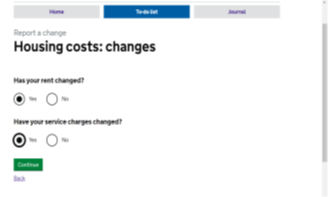
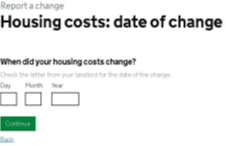
Step 4 – Date of Change
Enter the date 01.04.26 this is the date your rent changed.
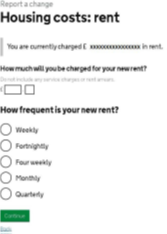
Step 5 – Frequency of Rental Payment
Your rent has changed to a monthly frequency as stated on your rent increase letter enter the monthly amount and tick the monthly box as below and click continue.
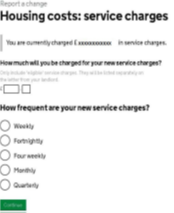
Step 6- Service Charges
If your service charge has changed enter the monthly amount as stated on your rent increase letter and tick the monthly frequency as shown below and click continue.
Step 7 - Rent?free week’s question
If asked if the question asked “Do you have any rent-free weeks?” select “No”.
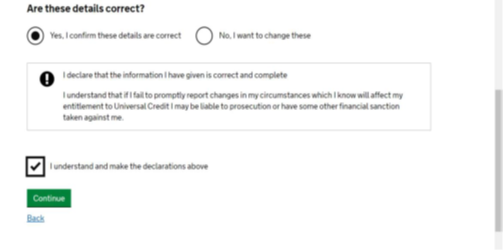
Step 8 – Confirming the Change
Select yes to confirm all details are correct and tick the declaration box and finally, the green ‘Continue’ button.
Step 9 – Change Reported
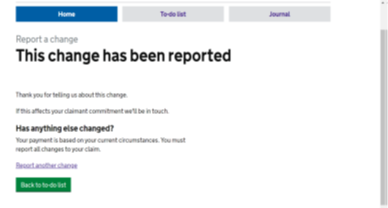
You will see the screen below advising your change has been reported
If you do not report your new rent correctly:
- Universal Credit may not pay the correct amount
- You could miss out on money you’re entitled to
- You may fall into rent arrears and have to pay the difference yourself
Our team are on hand to provide any support and assistance-please contact us on 0800 028 2755
 RSS
RSS